
When you click on a customer email, you are taken to the customer detail page. This page shows a complete summary of that customer’s loyalty activity.
You’ll find different cards that will give you information related to the customer.
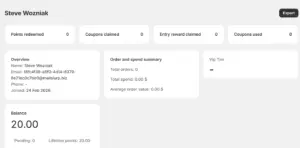
Overview Card #
This section gives you each customer’s basic information.
You will see:
- Name
- Email address
- Phone number
- Date the customer joined the loyalty program
This will help the merchant understand how long the customer has been associated with the store.
Point Summary #
This section shows the customer’s loyalty points information.
- Balance
The points are currently available to the customer.
- Pending points
Points that have been earned but not yet added to the balance. These points haven’t been converted into real points. (refer to glossary) - Lifetime points
Total points the customer has earned since joining, including redeemed points. - Adjust points
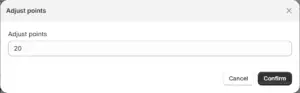
This button allows you to manually add or remove points. It is useful for support cases, goodwill gestures, or corrections.
Note: In case you decide to adjust points you’ll have to set the points manually in the text field.
Why adjust points?
Point adjustment is usually helpful for:
- Fixing points issue caused by a failed or delayed action
- Add goodwill points after a support interaction
- Remove points given by mistake
- Handle special cases not covered by automatic rules
In inback you can add the adjustment reason as well. It’ll help you remember the reason of points adjustment.
VIP tier #
This section represents the current loyalty tier of the customer. The tier is automatically assigned based on your loyalty program rules. You do not need to manually update it.
Rewards and coupon activity:
At the top of the page, you’ll see the summary cards. These cards indicate:
- Points redeemed
The amount of points the customer has redeemed till now. - Coupons claimed
The number of coupons claimed till the present. - Entry rewards claimed
Entry rewards the customer has used. - Coupons used
All the coupons used till date.
There’s a difference between claim and use. Entry rewards claimed might not necessarily be used. They may be copied by the end user but not used at the checkout. These numbers help you understand how actively the customer is engaging with your loyalty program.
Order and spend summary #
This section connects loyalty data with store performance.
You will see:
- Total number of orders
- Total amount spent
- Average order value
This helps you identify loyal and high value customers easily.
How merchants usually use this page? #
Most merchants use the Customers page to:
- Check a customer’s point balance during support conversations
- Understand which customers are engaging with rewards
- Identify repeat and high spending customers
- Adjust points when required
All data is updated automatically based on customer activity.


