
Only VIP tier related elements are covered here.
Where does the VIP tier information appear? #
VIP tier information is visible on two main areas of the loyalty widget:
- At the top of the widget as a quick status indicator
- Inside the Tiers section where customers can explore all available tiers
This ensures customers always know their current tier and can also see what other tiers exist.
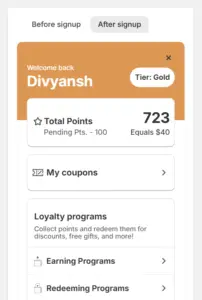
Current tier visibility #
Customers can see their current VIP tier clearly.
What is shown:
- The name of the current tier
- A visual label indicating it is the current tier
List of available tiers #
Customers can view all VIP tiers configured in your store. For each tier, customers can see:
- Tier name
- Whether it is their current tier or not
Tier names and the number of tiers are taken directly from your configuration.
Tier requirements #
For tiers that are not yet unlocked, customers can see the requirements needed to reach that tier.
What’s visible?
- Spending requirement
- Perks/Privileges
This helps customers understand what is required to move to the next tier.
Tier retention information #
If a tier has retention conditions, customers can see this information. For example:
- A required spend within a certain number of days to retain the tier
This makes customers aware that tiers need ongoing activity to remain active.
What customers can’t do:
- Customers cannot manually change their VIP tier.
Tier upgrades and downgrades happen automatically based on your loyalty rules.
Why this visibility matters #
Showing VIP tier information inside the widget helps:
- Set clear expectations for customers
- Reduce confusion about loyalty status
- Encourage repeat purchases through clear progression
All VIP tier information shown to customers is read only and fully controlled by your store configuration


